Logging into a computer in the Chapman 103 computing lab:
Go to any of the workstations, hit <Ctrl><Alt><Delete>. Then type
in the login userid shown on the whiteboard in the front of the room and
hit <Return> for the password. (If you want a non-public account, fill
out one of the User Account Request Forms located near the back door of
the lab.
Accessing SAS in the Chapman computer lab after you have logged onto
a computer: Using the left button on the mouse, click on the Start
button in the lower left corner of the screen, highlight Programs, then
highlight SAS, then highlight The SAS System for Windows V6.12 (all without
lifting your finger off the left mouse button), then release the left button
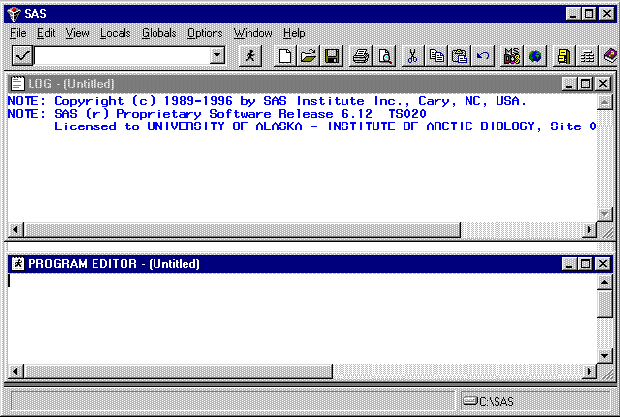
and SAS will start-up. Your screen should look like the following:
Windows in SAS PC: There are numerous windows of information used in SAS. The three used most commonly in this course are the Program Editor, the Log, and the Output windows. The opening screen on the previous page shows the Program Editor on the bottom and the Log window on the top.
The Program window is used to enter, edit, and submit SAS programming.Anytime you want to examine a particular window, you can do so by clicking the Window menu with the left mouse button, highlighting the particular window you want to examine, then releasing the left button. You can fill the screen with any window by clicking the maximization button on that window. To return to the initial Program and Log screen click the minimization button.The Log window is an assessment of what happened, including error messages, when a SAS program was run. You should always examine the Log window to see if your program ran correctly.
The output window (not shown on the current screen) appears automatically when a SAS program is run that produces output. You can access the output window now by clicking Window with the left mouse button, highlighting Output, then releasing the left button. Click the left mouse button on the minimization icon (the button on the right side of the Output blue bar showing an underscore _ symbol) to close the Output window and return to the screen showing the Program and Log windows.
We will also use the Graphics window later.
The log and output screens accumulate information from every program
you run unless you purposefully clear them. Therefore, it is important
to learn how to use commands or menus to clear these windows. We will address
this later.
Menus in SAS: Return to the initial screen showing the Program and Log windows and click anywhere on the Program window. Notice the menus available below the blue SAS bar (File, Edit, View, Locals, Globals, Options, Windows, Help). Now click anywhere on the Log Window. Notice the menu selection changes (Locals is no longer available). Take a few minutes to explore the Program menus.
File: This is where you can import information from a file, save a current program file, open a program file you saved earlier, or print the contents of any window.Edit: Used to copy and paste information and clear windows.
Locals: The Recall Text command is critical to your sanity! Every time you run a SAS program, the contents of the Program window are cleared automatically. To recover your program, rather than re-enter the entire thing, you click the Recall Text command while in the Program window.
Globals and Options: We will ignore these for now.
Help: This menu provides help on various commands, sample programs, and access to on-line tutorials and documentation. The sample programs are very useful in learning about SAS. Highlight Sample Programs, click Display at the bottom of the resulting window, then scroll down and highlight SAS/STAT, scroll down and click on Documentation Examples from Proc Ttest. Scroll down on the this window until you see the following:
| /* Example 1 */
options linesize=110;
|
This is how you document within a program.
Each command ends with a semicolon. Controls the width of the output. Names a temporary data file called scores. Identifies two variables; gender and score, gender is character data ($). Variable names must be < 9 characters, must start with a character but may include numbers. The @@ symbol indicates more than one observation per line. Cards tells SAS to expect data in the following lines(until it receives a ;). This tells SAS to run the t-test procedure to compare the two genders with respect to their score and titles the result. The cochran sub command is given to tell SAS how to calculate the p-value for the unequal variance case (see page 1636 of the SAS/STAT manual for details). |
Submitting a SAS program: To submit a SAS program entered into the Program window, click the icon with the running person on it. Do this now to run the program in the Program window.
If your program has no errors, the Output window should come up showing the following:
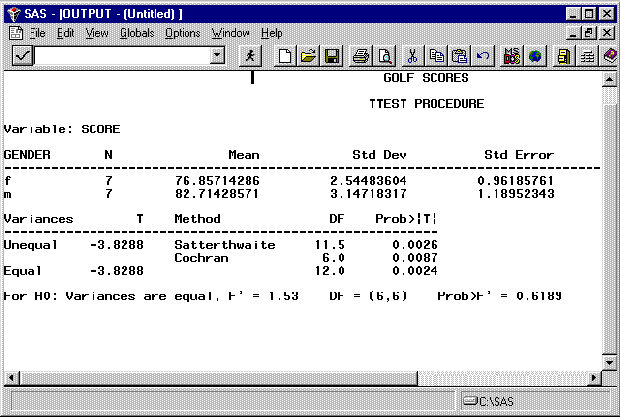
You may have to scroll to the right to see all the output. If you made
an error in editing, the Log window will provide messages to help you identify
the problem. You should always examine the Log window to determine if
the program is doing what you think it is doing. Click the minimization
button on the Output window so you can examine the Log window. Scroll through
the messages. Go back to the Program window which is now blank. Click Local
then Recall Text to bring your program back.
Printing programs and output: You have two ways to print out programs and output; 1) use the File menu and highlight Print then follow instructions on pop up windows or 2) use the Edit menu to Select All of a window, then Copy, then go into a word processor (e.g., Word or WordPad) and paste the material. You should use the latter for preparing homework assignments for this class. Print out the program and output now (save these in your portfolio) by doing the following (you may use method 2 above if you prefer):
Click anywhere in the Program window (if it is blank, use Local, Recall text to retrieve your program) then click File and Print. Next open the Output window then click File and Print.
Submit the program again by clicking the running person. Examine the Log window and Output window by scrolling up and down. Note that these windows have accumulated two copies of the same material now. You will learn to deal with this in the first homework.
Read Chapters 1 & 2 in your text.
Rework the first example program doing the following:
1) Include the following two commands (with the documentation) as the first two lines in your program. You should include these two lines as the first lines in all future assignments.
dm 'clear log';
/*This clears the log window so information does not accumulate.*/
dm 'clear output';
/* This clears the output window.*/
You can read about the DM command in SAS by clicking Help, then Extended Help, then Index, then enter DM in the query window, then click Display.
2) Change the options command line so that the width of output is 72 and so page numbers and the date are not printed. Hint: See page 29 in your text. You will want to include the command controlling width in all future homework assignments so your output is not wrapped.
3) Delete the cochran sub command from the t-test procedure.
4) Sometimes data are missing. Suppose for the first observation (f 75) we had recorded that the player was a female but we failed to record the score. Keep the f and replace the 75 with SAS's missing numeric data indicator (see page 13 in your text).
5) SAS can run several procedures in the same program. Add the following second procedure (just before the run command) to the program:
PROC PRINT DATA=scores;
This is a handy command to use on a regular basis to be certain
that SAS has read your data correctly.
6) Delete the title subcommand in Proc Ttest (title 'GOLF SCORES';) and add the following two commands after the linesize command and before the data step:
Title1 'Lesson #1';You should title each of your homework assignments in this way.
Title2 'put your name here';
7) Run the program, check your log file to be sure it worked correctly
(edit and re-run if it did not until the program works appropriately),
copy the program file and output to a word processor, and add any comments.